
After sending
Remind, correct a recipient, add a copy, void, or duplicate to correct and send again.
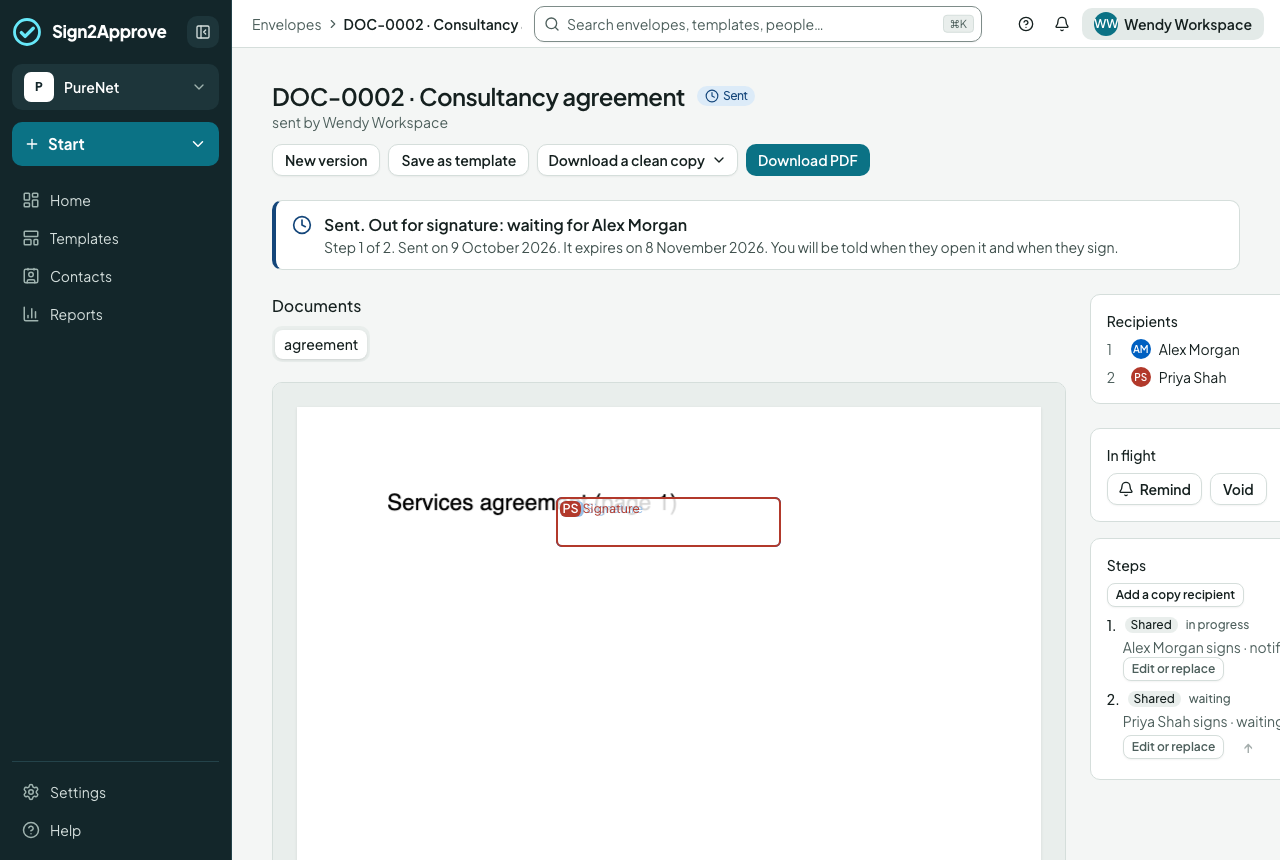
Everything after Send happens from the envelope's page: open it from Home, Inbox or Documents. It opens like a document, on its own. The bar at the top has its name and where it is, one button for what you'd most likely do next, its ⋯ menu, and X, which takes you back to where you opened it from.
The button follows the state: Remind while it waits on people outside, Duplicate once it has been declined, rejected, voided or has expired, and Download sealed PDF once it's complete. Nothing shows while it waits on you: your task is on the page.
The ⋯ menu is the same as on the envelope's card in Documents, in the same order, showing only what applies:
| Group | Actions |
|---|---|
| Getting it | Download PDF (Download sealed PDF once sealed); Clean copy, as Word with the answers filled in or as PDF, for a document made from a Word template |
| People | Remind…, Send a copy to… (while it's out), Share with a colleague… |
| Making another | Duplicate, Save as template |
| Keeping it | File in a folder (once sealed), Add to favourites, Archive |
| Ending it | Void… (yours, while it's out), Delete draft |
On a card, the menu also starts with the card's own button and Preview, and ends History before the red ones.
Straight after Send you land on this page, with a word to say it has gone: Sent for signing, or Sent for approval when people approve it first. From there, Send another document starts a new one, and Save as template (for a document that didn't come from a template) keeps its set-up to use again.
Being told what happens
You are told when each recipient first opens the document, signs, approves, declines or asks for changes, when the envelope completes or is about to expire, and when a reminder goes out: in the bell at the top of the app and by email, as you choose under Notifications.
Remind
Remind opens Send a reminder: who it will go to, a fresh copy of the invitation for each person whose turn it is. Add Your message if you like: it goes above the invitation. With AI Assist on, the box opens with a short message suggested for you, marked ✦ Suggested by AI Assist; edit it, or clear it to send the reminder on its own. Send reminder says who it went to.
Each person can be reminded once a day, and only so many times in all. Anyone reminded in the last day, or who has had every reminder they can, is named in the dialog and left out; if that's everyone, the dialog says so and there's nothing to send. Contact them directly, or copy their signing link from the steps on the page. Workflows can also remind automatically after a number of days.
Correct a recipient
Edit or replace on a person whose step is not yet complete. Fix a typo or put in someone else: their old link stops working at once and says only that the request has moved; the new address is invited if the step is active. Approvals already given stand. Tick Let the previous person know when it's a genuine handover rather than a typo.
If the new address is at a different organisation after an internal approval, you are warned and the change is flagged on the record. A workspace can require re-approval in that case (Settings → General → Changes after sending).
Reorder and add
Steps not yet reached can be moved up or down. Send a copy to… in the ⋯ menu adds someone, usually outside the company, who should have a copy but doesn't sign or approve, such as a client's solicitor. They're emailed a link now, or the sealed PDF at completion, and are on the envelope's record.
Share and file
Share with a colleague… in the ⋯ menu lets someone in your company see the envelope in the app, until a date if you choose. They aren't emailed and aren't added to the envelope: it simply appears in their Documents. File in a folder puts a sealed one in one of your company's folders. Once it's filed or shared, the page says where it's filed and who it's shared with, with Stop beside each person.
Void
Void… in the ⋯ menu ends the envelope with a reason. Everyone it has reached so far (emailed, opened, signed or approved) is emailed that it's withdrawn, with your reason, so write it for them: "Please don't sign this one, I sent the wrong version". Their links stop working. People whose turn hadn't come were never emailed and hear nothing. The record stays.
Changes after approval or signing
Once it's sent, the documents are locked. To send a corrected one, Void it if it's still out, then Duplicate. Duplicating an envelope that was declined, rejected, voided or has expired makes its next version: a new draft with the same documents, people, fields and values, linked to this one, with the reference stepped (v2), opened in the wizard. Both pages show the chain of versions. Duplicating anything else is a plain copy, so two versions are never out at once. If the documents themselves need changing, change your file and use Replace file on the draft.
Completion
When the last person signs, the envelope is sealed within a minute and everyone on the envelope, your colleagues included (whether they signed, filled in, approved or were sent a copy), is emailed the sealed PDF and certificate. With a step for company eyes only, its group's members get the complete version and everyone else the version without those entries. Download on the page gives the sealed file; before completion it gives a watermarked copy. See how documents are sealed.