
Review and send
The details, the chain of steps, and what happens when you choose Send.
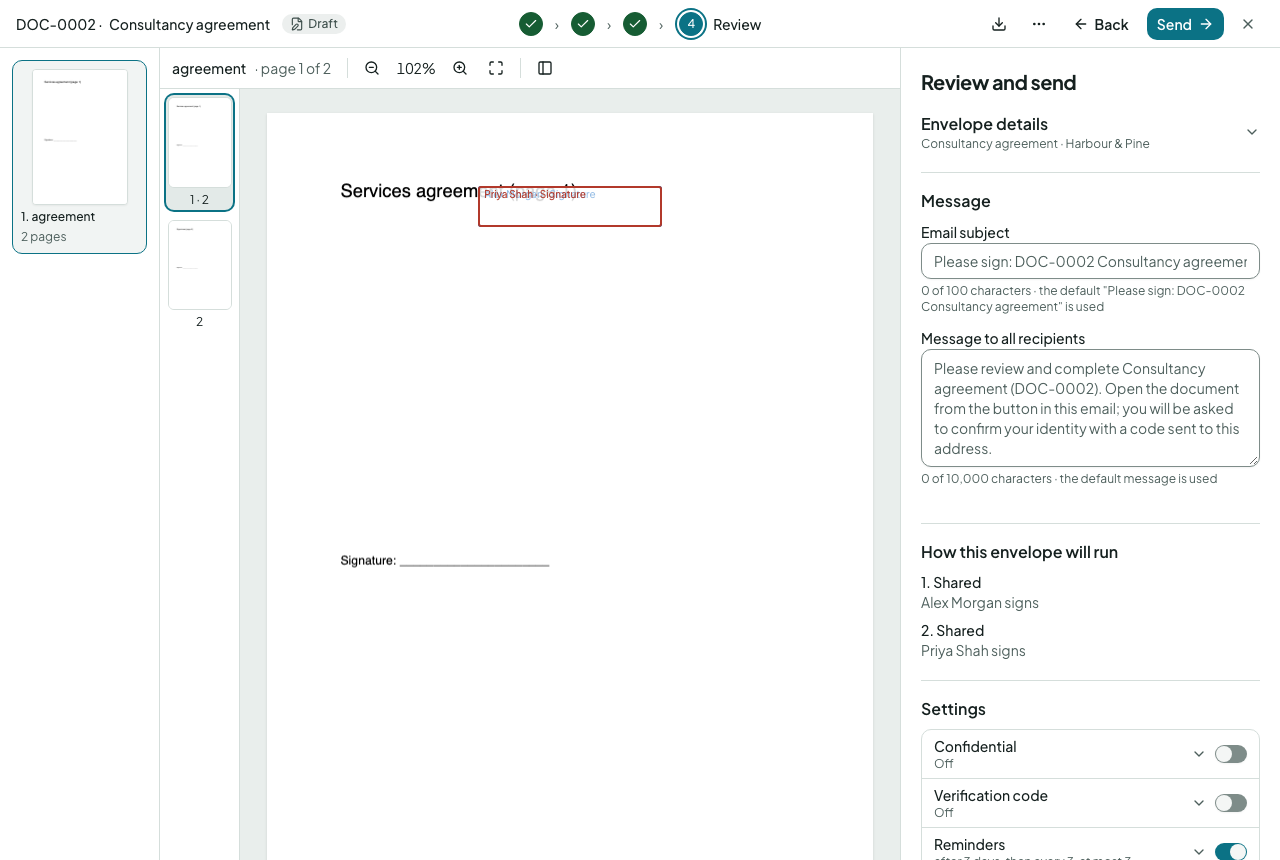
The document stays beside the review, as on the earlier steps, with every placed field outlined in its person's colour and labelled with their initials, so you can check who acts where before you send. Send is at the top right.
Details
Envelope details is one line showing the title and organisation; select it to open and change them.
- Title — suggested from the document; change it freely. You can also rename the envelope at any step by selecting its title at the top left of the editor.
- Reference — the number or code your workspace uses; some templates set it for you from a pattern. See references.
- Message — the note in the invitation email.
{{title}}and{{reference}}are filled in. - Expiry — how long recipients have; the workspace default applies unless you change it.
- Verification code — tick it to make recipients confirm their email with a six-digit code before they can open the document.
Settings
One line per setting, showing its current value: Confidential, Verification code, Reminders, Expires, Send (straight away, or at a time you choose) and, when your company has folders, When it’s complete: the folder the signed envelope goes into once everyone has signed. Nothing moves before then, and an envelope from a template that names a folder goes there unless you choose another. Select a line to open it. The switches work without opening the line. A change is saved as you make it; there is no Save button.
The chain
The steps as they will run for this envelope, naming everyone: an outside party by name and email once Fill in has them ("Sam Supplier (sam@…) signs"), or what is still to do ("The supplier's contact signs: add their name and email on Fill in", a link to the box); a line-manager step with why it goes where it goes ("Any one of Directors signs as budget holder (you have no line manager)"); any step skipped by an only if rule and why, in plain words. If a group step needs you to choose the person, do it on the Recipients step before sending. What still blocks sending is listed once at the top; unfinished answers are one line, "Fill in isn't finished: 10 values to go", linking to the first empty box.
Send
Send emails the first step. If the first step is internal approval, the envelope becomes with us and the approvers are told instead; outside recipients hear nothing until the approvals are done.
After sending
The envelope's page shows who has it and the history. Remind, Send a copy to, Share with a colleague and Void are in its ⋯ menu, the same as on its card in Documents; Edit or replace a recipient is in its steps. See after sending.