Build a template
Documents, roles, locked approval steps, questions and settings, published as a version.
Templates → New template opens the same editor as sending, in template mode: instead of people you define roles, and nothing is sent. It ends in Publish. A template of yours sits under Yours until you publish it to the workspace.
Documents
Upload the files every envelope made from this template will carry. A Word file's placeholders and signer tags are read when it is added, and its roles arrive with it; the link under the document opens its tags and questions. To start from a Gallery starter, choose Duplicate on it instead.
A content control in the Word file whose title is a field name, such as employee.name, is read as that field, just as {{employee.name}} would be. Controls tied to the document's own properties, such as its Title and Status, stay as printed text. A Word file with tracked changes can't become a template: accept or reject them in Word first.
Under the documents, Checks on the tags lists anything to look at. A tag that is none of your company's fields gets Name it, which adds it to your fields (if you can change settings), or I'll fix it in Word, which leaves it for your next upload. A role that has nothing to sign in a document is mentioned too.
The first document is the main one; anything after it is a supporting document (a guidance note, terms, a code of conduct) that goes with every envelope, after the main document. + Add document opens Add a supporting document (our templates); Add files uploads one. A supporting document from the library follows its own updates: a new version flows into the next envelopes, and the tile here says Update available until you take it into the template.
Fields
The sender is the first person on the Fields step, like the recipients. What the documents ask the sender for is outlined on the pages; choose one there, or step through them with Next, and its details open:
- Asked as, Type and Required: how Fill in asks for it.
- Shown as: for a date or money, how the documents print it (15 October 2026, 15 Oct 2026 or 15/10/2026; £8,000). A
format=written in the document's own tag wins, and then there is nothing to choose. - Default: none to start with. Set a default offers A value you choose; for a date, Today's date (the day each envelope is made); for text, The next number in a series, with a prefix and number of digits (AGR-0001, AGR-0002…). Every template that issues the same value draws from the same series, a number is taken when the envelope is made (so a draft thrown away leaves a gap), and the sender can change any default.
- Printed in: the documents that print it.
Under Add fields, the sender's answers can be dragged onto a page to print one somewhere else, and New question gives the sender something more to answer: drop a Text, Date, Number or Money box where it should print, then name it in its details. Remove this question takes it and its boxes away.
For each recipient, Add fields opens with Suggested: ready-made boxes for the fields this kind of document usually asks for, each already labelled, of the right kind and tied to the company's field. Say what kind of document it is under Document type (an uploaded file starts as Not set; nothing is guessed); the type stays with the document. What the document already asks for is left out. The lists are kept under Settings → Document types. Also ask for adds a company field the sender answers without it printing anywhere.
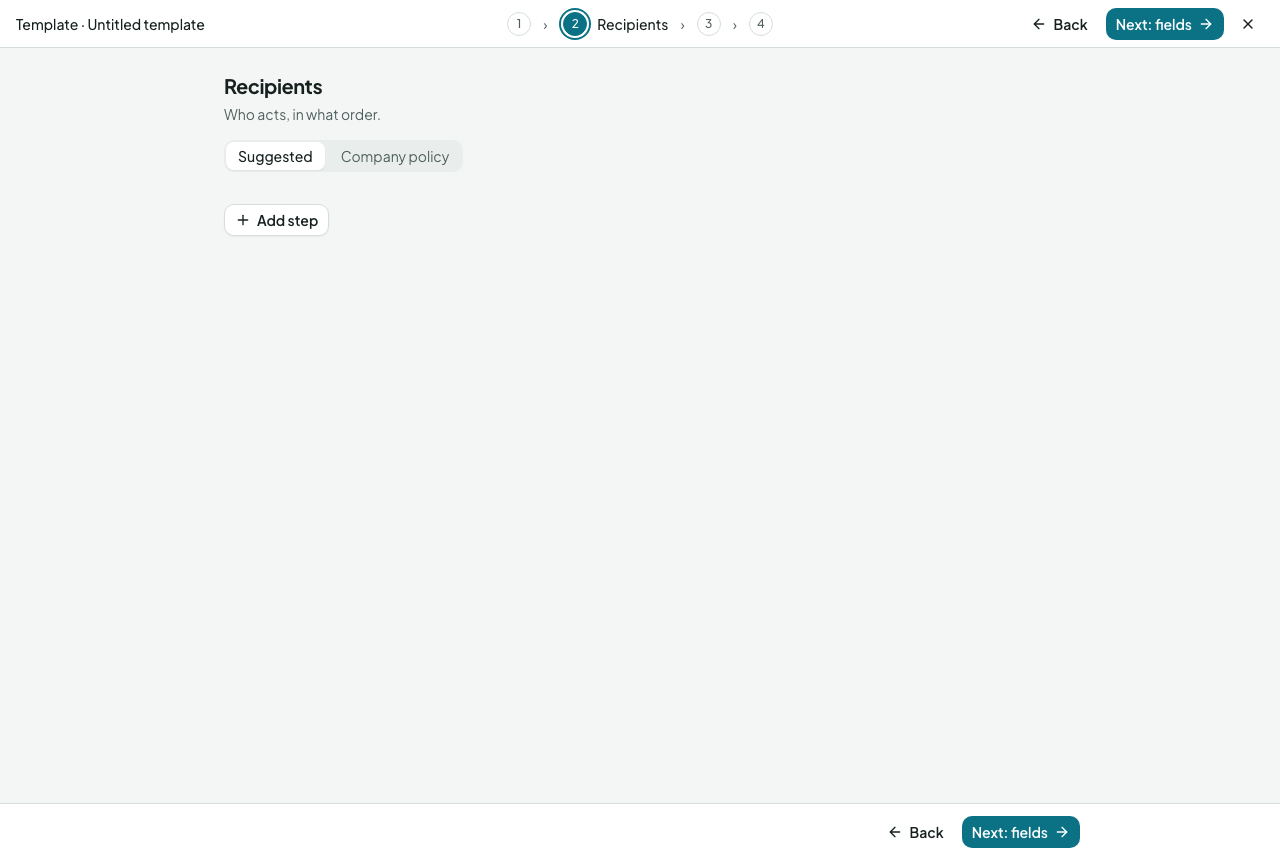
Recipients
One line per step: who, what they do, and any only if. Open a step to change it:
- Who: named at Fill in (an outside party), the sender, the sender's line manager, the sender's department approvers (any one of them acts; set under Settings → Groups), a group (any one acts, or the sender chooses), or a member (or one the sender picks). A line-manager step can name a fallback group for senders with no line manager; a department-approvers step for senders with no department, or whose department has no approvers. The sender is never one of their own approvers: the step goes round them.
- Does: approves, signs, views or gets a copy.
- Only if… a rule on a value the template collects (or the title, the sender's email, the sender's department or the sender's role): equals, is more than, contains, is blank. A party with a company named at Fill in also offers First purchase order with the supplier (named after the template; the client, the other party and a contractor likewise): yes until an envelope of this template with that company as that party has completed, so Finance can see every first order (a completed NDA with them counts for nothing here); the answer is fixed on the envelope when it is first sent, so a resend or a second order sent meanwhile reads the same. If the rule fails for an envelope the step is skipped and the reason recorded.
- More: must keep (off unless you tick it: the sender cannot remove, move or change the step; not offered on a company-policy route, which is locked as a whole), a private message, reminders and escalation, copy timing, an any one of group of outside people, permissions.
Suggested or company policy
A route is suggested unless you switch it to company policy. Suggested: senders may change who fills a role and the order, and add or remove steps; a must-keep step stays. Company policy: senders fill the blanks only; the template is always the workspace's, cannot be added to an envelope that already has a document, and only its owner and admins can duplicate it or download its file. The switch shows to people who may manage shared templates. An only if on a line-items total offers the subtotal (before VAT) and the total (including VAT); a skipped step says why in plain words ("Skipped: items subtotal £3,000 is not over £5,000").
Approving your own
A sender never approves or signs on their own envelope, even as a member of a step's group. A group step leaves the sender out; an approval that lands on the sender goes to their line manager; a line-manager step for a sender with none goes to the fallback group; if nobody is left, sending is blocked and says who can fix it. A sender flagged as always needing approval gets a line-manager approval only when the route has none. Nobody approves twice: someone who has already approved or signed this round is left out of a later approval step, and if that leaves nobody, their earlier approval counts and the record says so.
Fields
Place or adjust the fields for each role on the pages, as when sending.
Publish
Name the template (a noun: "Mutual NDA"), choose Only me or Workspace and, for the workspace, the folder it sits in. The Owner is shown here; Change owner hands the template to another member (the owner and admins can). On a company-policy template, Senders may add other documents lets a sender put their own files alongside the template's on a send; the template's own documents stay, first and unchanged. Publish sits top right, where Send does when sending, and makes a version; envelopes keep the version they were sent with, and publishing again makes the next.
From any envelope, Save as template (in its ⋯ menu, on its card in Documents or on its page) opens a copy of it here, owned by you, with the people as roles and no filled-in values.